

Full-Featured Boot Camp Solution
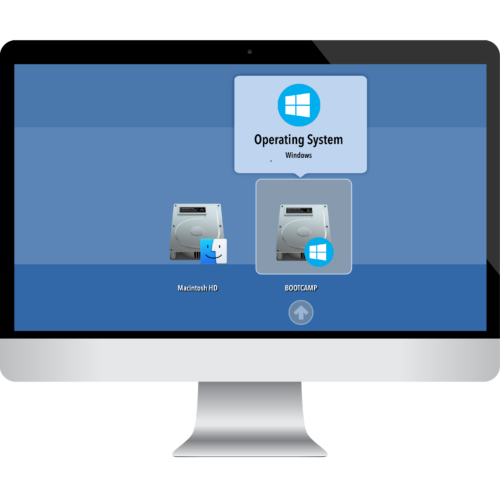
Winclone 10 is the complete solution for protecting your Boot Camp Windows system against data loss and for moving your Boot Camp partition to a new Mac.
Protect all the time and energy you spent getting Windows and all your programs installed and set up in Boot Camp. Create a Winclone image of your Boot Camp partition and snap back to that same setup in minutes.
Quick Install Windows 10 or Windows 11
With the new Quick Install feature, you can eliminate hassle when installing Windows 11 on your Boot Camp partition. Simply select a Windows ISO, a driver folder, and a target volume: in just a few minutes, Winclone 10 will take care of installation. Best of all, it takes just 5 minutes or less!
Sonoma-ready
Winclone 10 is now Sonoma-ready! You won’t have to worry about changes to the OS changing how you use Winclone. Since Winclone 9, our software handles all 11.0 or later needs for Boot Camp cloning, migrating, package deployment, MDT, and SCCM.
Updated User Interface
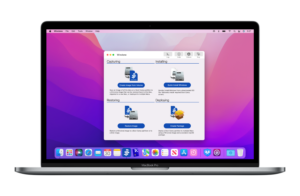
To keep with the sleek look of macOS, Winclone 10 also includes a cleaner design to match. Our main window is simple so you can get to what you need, and fast; all other tools are neatly organized via dropdown in the menu bar. We’ve also moved Quick Install Windows to the main window for your convenience.
Winclone 10 Overview
Winclone Features
- Quick Installation of Windows 10 & Windows 11
- Boot Camp driver injection
- Imaging and restoring Boot Camp
- Supports macOS Ventura (13) and Sonoma (14)
- Scheduled background updates of Winclone images
- Supports restoring images created with prior versions of Winclone
- Supports restoring images to DOS-FAT32, ExFAT, and NTFS formatted volumes
- Supports restoring images to attached volumes (bootable depending on hardware and Windows version)
- Supports saving to external or network storage
- Fast incremental imaging
- Support for APFS and core storage volumes
- Detection and reporting of inconsistent GPT and MBR boot records
- Supports local Disk-to-Disk migration
- Shrink/Expand Boot Camp file system
- Options for “Make Legacy Bootable” and “Make EFI Bootable”
- Progress bar estimate and percentage complete
- Alert sound for success or fail operation
- In-app links to related support resources
- Updated User Interface
- Notarized for enhanced security and compatibility with macOS Big Sur and later
- Standard
- $49.99
- Clone, Migrate, and Restore Boot Camp
Image and Restore Boot Camp
Volume-to-Volume Imaging
Restore image to secondary and external drives
Image Windows drives
Incremental Imaging
Install Windows in Under Five Minutes
If you have a partition where you’d like to install Windows 10 or Windows 11, Quick Install Windows feature has you covered! As long as you have a Windows ISO, your machine’s drivers from Boot Camp Assistant, and an partition formatted to MS-DOS, Quick Install Windows will take you from a clean partition to running Windows without you having to lift a finger.
The best part: after you locate the ISO, drivers, and partition, it takes less than five minutes or less to complete the installation!
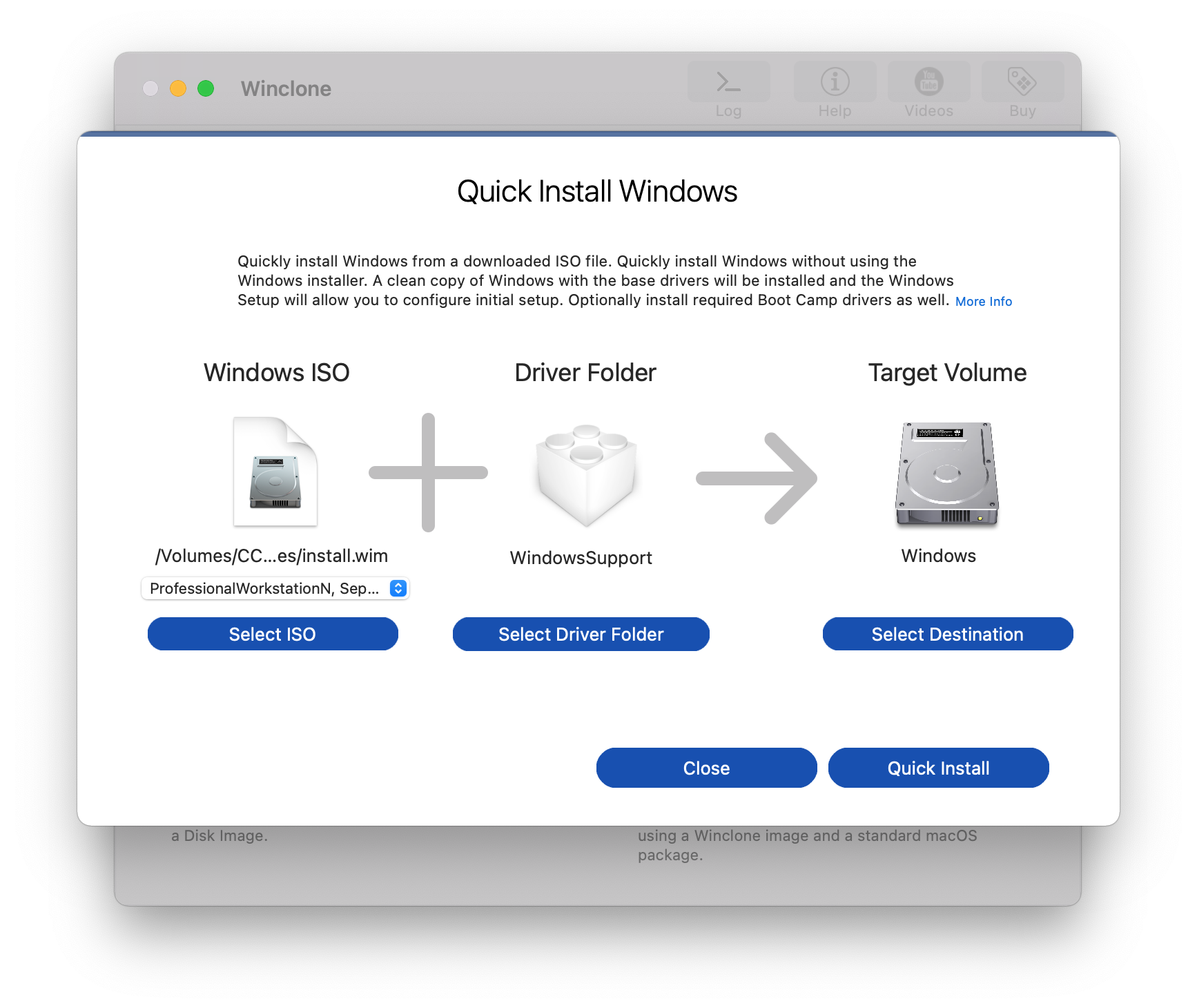
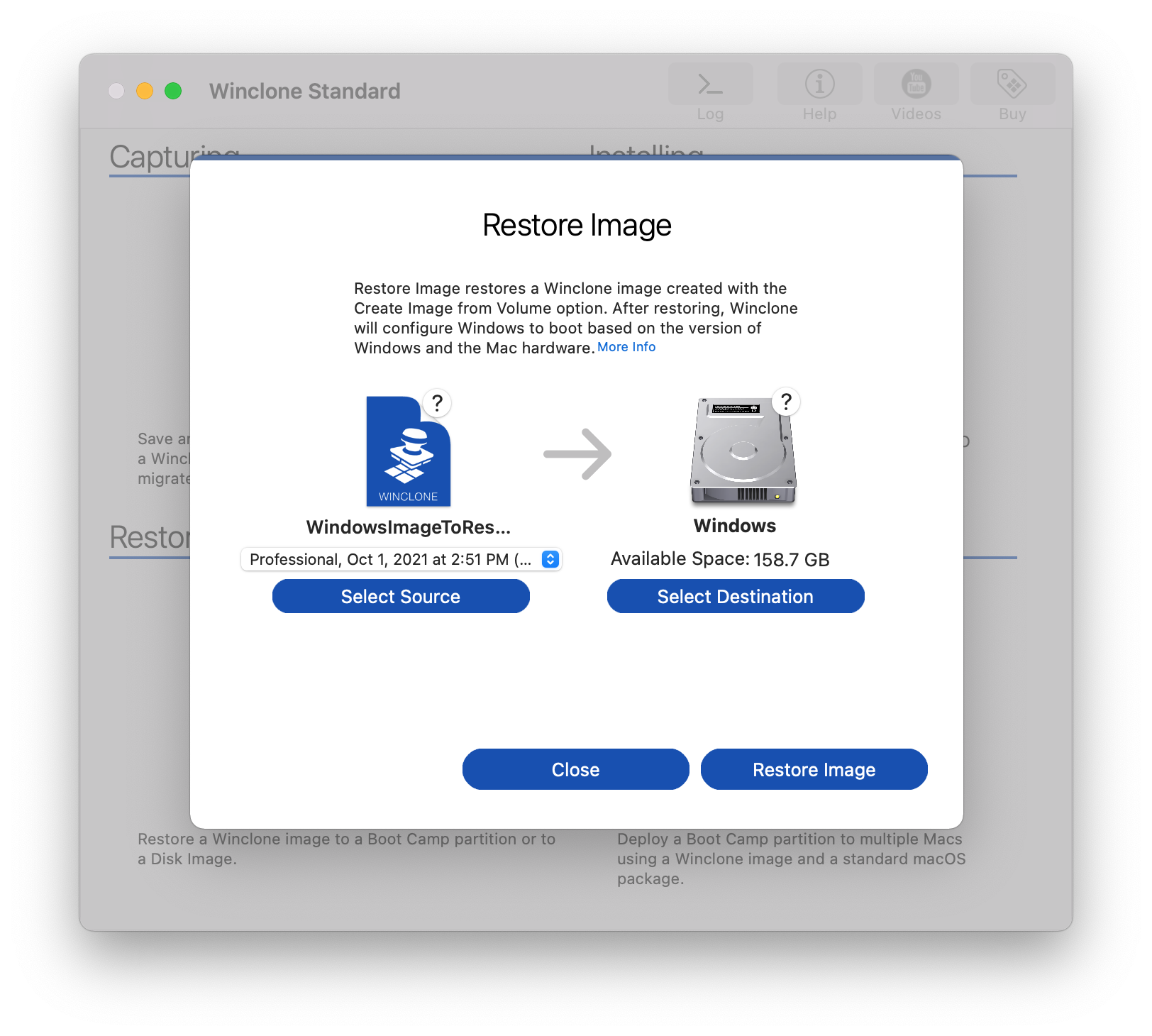
Image and Restore Boot Camp Partitions
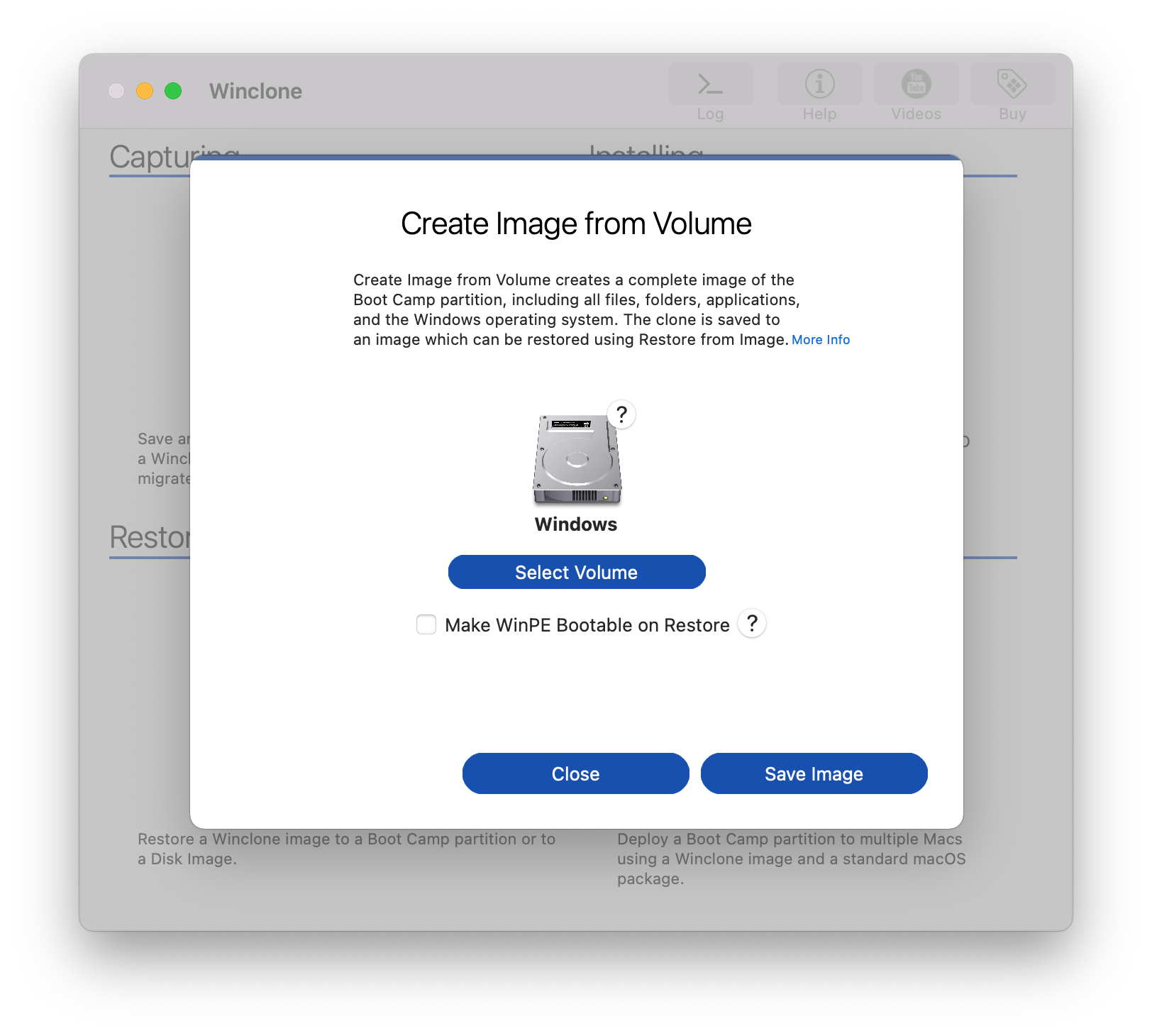
Winclone 10 makes it easy to create a full image of your entire Boot Camp partition, including files, programs, and the Windows Operating System. If you ever need to snap back to that exact state, just restore the image and your Boot Camp partition will be exactly the same as when you took the image.
Create a Winclone image before a major Windows upgrade, program installation, or any time you need to make sure you can get up and running quickly. Great for people who use Boot Camp for business, education, gaming, or casual use.
Migrate your Boot Camp partition to a new Mac
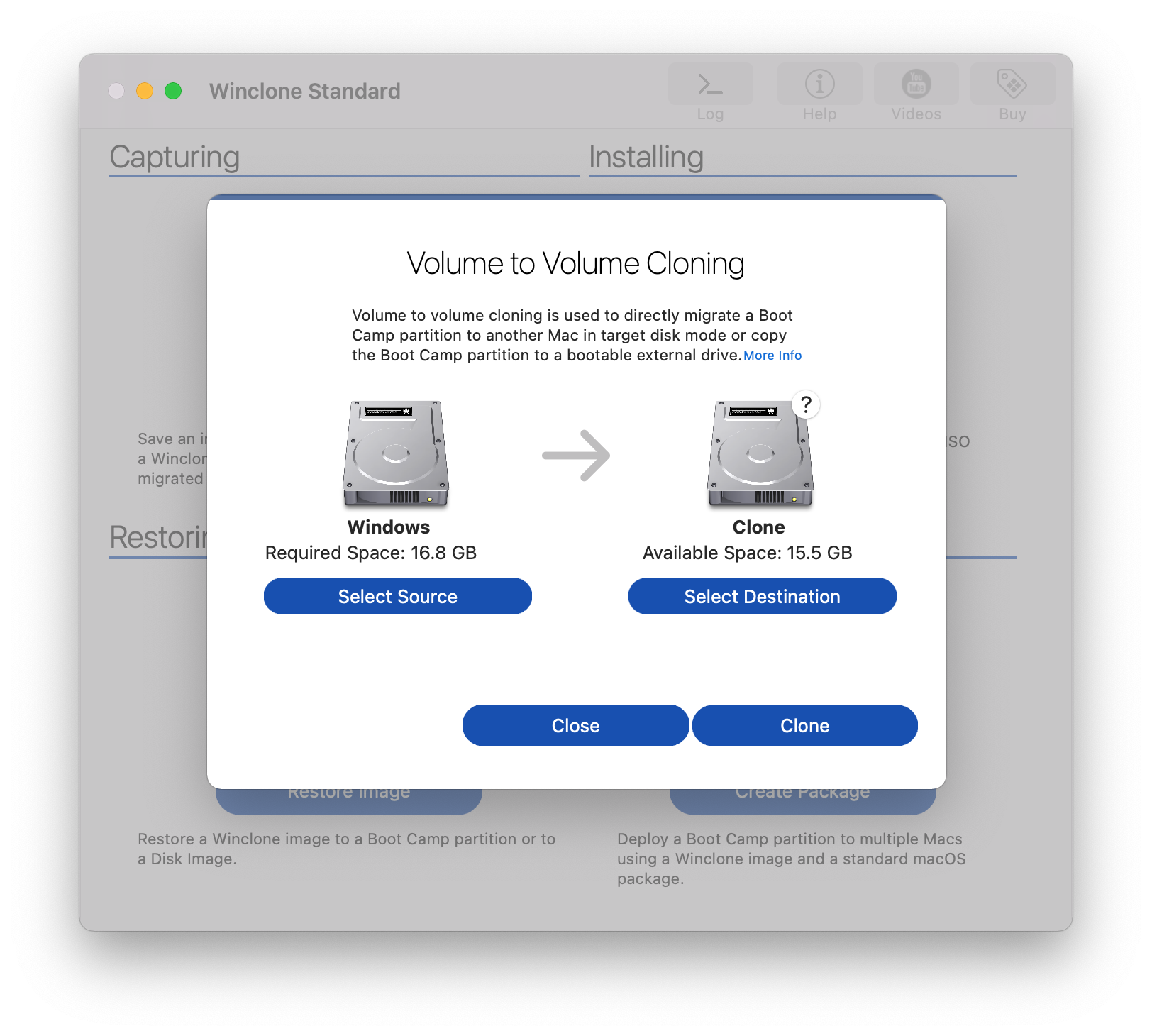
Did you just get a new Mac and are dreading installing Windows, all your programs, and all you data to your new Boot Camp partition? Use Winclone to transfer Windows, all your programs, and all your data easily. You can save an image of Boot Camp on your prior machine, restore the image on your new Mac, and be up and running fast! Winclone also supports Volume to Volume imaging so you can transfer your Boot Camp partition to a Mac in Target Disk Mode.
Winclone 10 makes transferring Boot Camp between Macs easy. Get Winclone 10 today and see how easy transferring your Boot Camp partition can be!
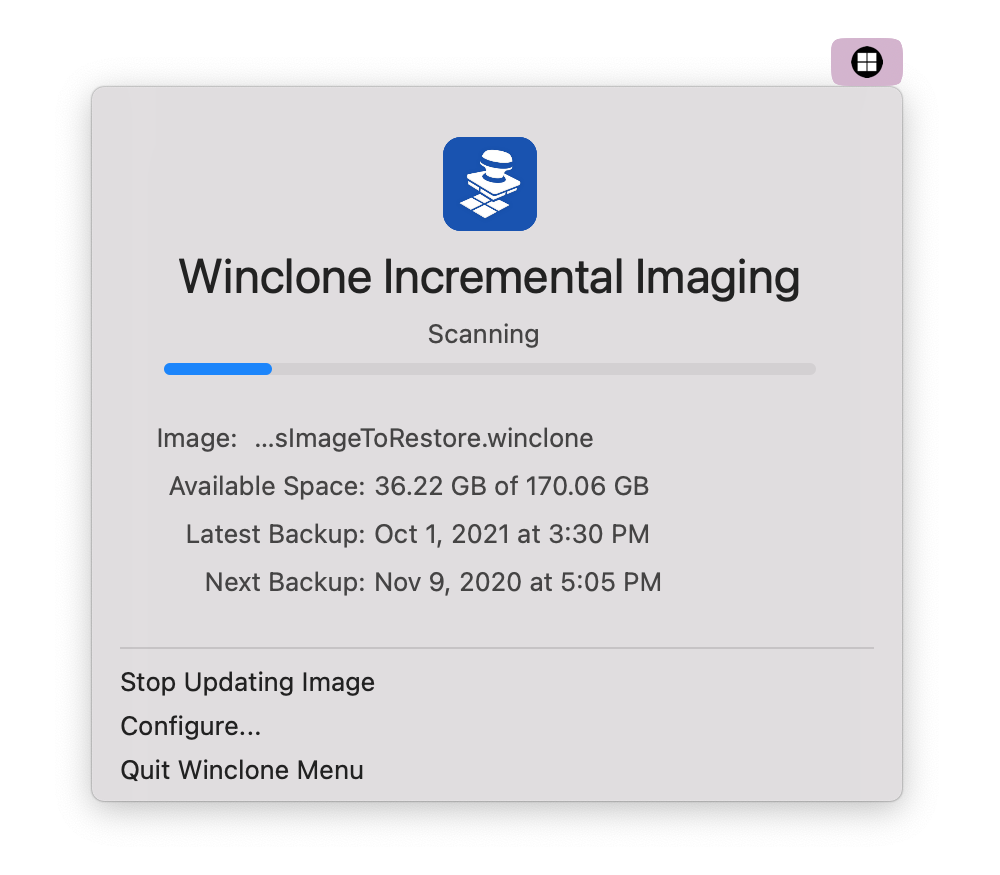
Winclone Incremental Imaging
Incremental imaging makes it easy to update an image with just the files that have changed. Winclone keeps track of the original volume that was used to create the image: simply select the image and Winclone 10 will update the image with just the files that have changed since you created the initial image.
You can schedule to update an image in the background and schedule the update hourly, daily, weekly, or monthly.
Move Boot Camp to an External Disk
Most modern Macs support booting Windows 10 from an external USB hard drive. If your Mac and external hard drive support booting Windows 10, Winclone 10 makes it easy to transfer Windows to the external hard drive. You can save an image of your Boot Camp partition and then restore the image; you can also use the Volume to Volume feature to copy your existing Boot Camp partition to external hardware.
We recommend USB-C or Thunderbolt external SSD drives, a modern Mac, and Windows 10 for best performance and compatibility.
What Our Customers Are Saying
Winclone 10 Videos
 Subscribe

Introducing Winclone 10
Exploring Winclone 10
Quick Install Windows 11: An Easy Way to Install Windows 11 on Mac via Boot Camp
System Requirements
- Version history
- Boot Camp Partition
- macOS 13 Ventura and 14 Sonoma
- Windows 10 or Windows 11
- An Internet Connection (required to verify your license key)
Need Winclone for previous versions of macOS or Windows? Get a legacy version. For requirements of past versions, please read Winclone System Requirements. View Upgrading Winclone for information on how to upgrade from an earlier version of Winclone to Winclone 10.
Troubleshooting
- Run CHKDSK on Boot Camp
- Sysprep Issues
- System Integrity Protection and Secure Boot
- How to fix “Error mounting EFI on disk /dev/disk” errors
- Windows Boot Issues after Winclone Restore
- Resolving INACCESSIBLE_BOOT_DEVICE Error after restoring Winclone image
- Inject Boot Camp Drivers
- Make EFI Bootable/Make Legacy Bootable
- Extracting a Winclone Image from a Package
Resources
Twocanoes Knowledge Base — Main Page
- Quick Install in Winclone 10
- Volume to Volume Cloning in Winclone 10
- Expand Windows Filesystem/Shrink Windows Filesystem
Deployment
Winclone 10 Standard News & Tips
Knowledgebase
Mounting Target Volume Read-Write in macOS Recovery
December 14, 2021When installing a package in macOS Recovery on macOS 12 Monterey, the installer requires that the target volume is mounted read/write. To accomplish this in…
Read More
Updates
Read More
Install Windows 11 Without TPM 2 on Boot Camp
October 13, 2021One of the really interesting features of Winclone 10 is the ability to install Windows 11 onto a Boot Camp partition. I’ve received questions about …